Digital Sketching: Your First Drawing Tablet Setup

Digital Sketching: Your First Drawing Tablet Setup

DariaCurated by Daria
Jump to the 7 picks

Nobody Ever Has to See the Bad Version

Digital sketching is drawing with a pen on a lit sheet of glass, where every line sits on its own transparent layer and nothing you do is permanent. People do it on the sofa, on trains, in waiting rooms — anywhere a tablet fits. The idea is much older than the iPad: Elisha Gray patented a machine that sent handwriting down a wire in 1888, and the first computer drawing tablets turned up in the 1950s and 60s. Here's the part I didn't see coming. The first colour paint software for graphics tablets on personal computers was written in 1981 by the rock musician Todd Rundgren, and Apple licensed it.

If you've already filled a couple of sketchbooks in pencil, this won't feel like starting over. Your hand knows what it's doing. What changes is everything around the drawing: you can lift a rough onto its own layer and ink cleanly over the top, recolour a whole shape in one tap, or back out of ten minutes of bad decisions with no smudged eraser mark left behind. Most beginners expect the pen itself to feel alien, and it does for about a week, mostly because glass is slipperier than paper. The thing that really catches people out is how fast you stop being precious about a drawing.

My advice: buy the fewest pieces you can and let the app carry the rest. A tablet, a pen that senses pressure, and one drawing app will get you through your first hundred sketches. Don't buy the accessories until something actually annoys you.

The two big purchases below are genuinely expensive, so I've been blunt about where the cheaper doors are; everything after them costs less than a decent sketchbook.

None of this replaces paper, and I'd argue you shouldn't want it to. Plenty of people keep both running, doing loose pencil and graphite sketching on the move and saving the tablet for colour work at home. What follows is the short list of what you have to own before the first stroke.

The Short, Expensive List

There's no way around it — the hardware is the cost of entry, and it's all front-loaded. You need a tablet you can draw directly on, a stylus that reads how hard you press, and an app. The app is the cheap part. Procreate is a one-time purchase with no subscription, and Krita is free and open source if you'd rather work on a laptop. Where beginners overspend is the tablet, because the Pro models get recommended constantly and what actually caps you in Procreate is how much memory the device has, not how fast it is.

Disclosure: This section may contain affiliate links to Amazon. We may earn a small commission from qualifying purchases at no extra cost to you.
tablet you draw directly on, with stylus and pressure support

Pick 01 of 07

tablet you draw directly on, with stylus and pressure support

A tablet you draw straight onto, so the line appears under the pen tip instead of on a separate monitor. For sketching, the specification that matters most is memory, because drawing apps set how many layers a canvas can hold partly from it. Screen size is the other trade-off: an 11-inch panel is easy to hold on a sofa, while the 13-inch models give you more room but stop being something you carry around.

Why we picked this exact one: The 11-inch iPad Air with the M2 chip sits one step below the Pro line, which is where a beginner should land. It carries a 4.7-star rating, and it runs every major drawing app without complaint. The honest catch is the price — the entry-level iPad costs noticeably less and runs the same software, so treat this as the version you buy for headroom rather than the one you have to have.

See it on Amazon
pressure-sensitive stylus that varies line weight as you press

Pick 02 of 07

pressure-sensitive stylus that varies line weight as you press

A stylus built for the tablet it pairs with, reading both the angle you hold it at and how hard you press. Pressure is the feature that matters for sketching, because it lets a single brush go from a hairline to a thick stroke without you touching a setting. Not every stylus has it, and the cheaper models in a manufacturer's own range often leave it out.

Why we picked this exact one: The Apple Pencil Pro is the only stylus Apple currently sells that supports pressure sensitivity; the cheaper USB-C model has tilt but not pressure, which is the single most misunderstood thing about buying an iPad for art. It also adds a squeeze gesture that opens a tool palette without your hand leaving the canvas. It costs considerably more than the alternative, and that gap buys you one feature you will use on every single stroke.

Open Item
two-finger drawing glove that keeps your palm off the touchscreen

Pick 03 of 07

two-finger drawing glove that keeps your palm off the touchscreen

A fingerless glove covering the little finger and ring finger, the two that rest on the screen while you draw. It stops the side of your hand registering as a touch, and it keeps skin oil off the surface as a side effect. They come in sizes, and a loose one slides around under your wrist while you work.

Why we picked this exact one: The picoggo two-finger drawing glove comes as a pair for under ten dollars, which matters because the fabric picks up grease and wants washing. It holds a 4.6-star rating. The three-layer construction is thicker than the thin lycra versions, and some people find that warm over a long session.

See it on Amazon

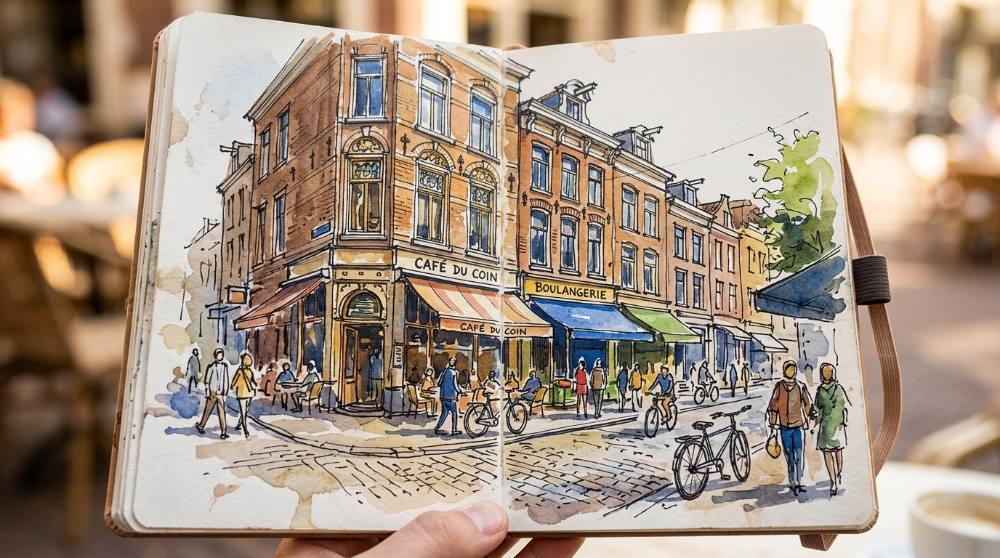
Buy these three and you're started. If the price makes you wince, the honest cheaper route is a screenless pen tablet plugged into a computer you already own, running Krita — it costs a fraction as much, and the only real tax is a week of feeling like your hand belongs to somebody else. A lot of people arrive here from sketching buildings and streets on location and end up doing both.

The Stuff That Fixes Hour Three

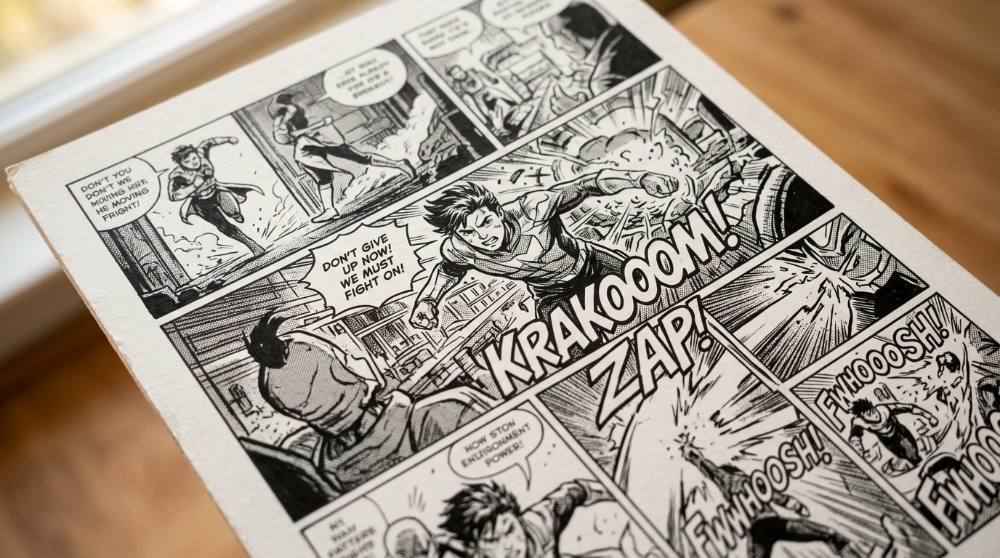
Nothing here will make your drawings better. What it does is take away the small irritations that make you put the tablet down: the pen skating on glass, your neck aching from looking straight down, the cramp that arrives in your first two fingers. I'd add these one at a time, in the order things start bothering you. This is also the point where people working toward comic and manga pages begin caring about pen feel, because inking punishes a slippery surface far more than loose sketching does.

matte paper-feel screen film that adds drag under the pen tip

Pick 04 of 07

matte paper-feel screen film that adds drag under the pen tip

A textured film that sits over the display and gives the stylus something to bite into instead of skating across glass. The texture cuts reflections too, which helps if you draw near a window. The trade-off is a slightly softer, grainier image, so it suits drawing better than watching video.

Why we picked this exact one: The KCT Paperfeel two-pack costs a fraction of the well-known branded film, and artists who have used both rarely report a difference in feel worth the gap. It has been reviewed more than 37,000 times. Two films in the box is the quiet argument for it, because the first application almost always traps a bubble.

See it on Amazon
adjustable stand that tilts a tablet to a drawing angle

Pick 05 of 07

adjustable stand that tilts a tablet to a drawing angle

A folding frame that props a tablet at a shallow slope, roughly the way a drafting board sits. Drawing on a flat table means bending your neck over the screen for as long as the session lasts. Look for one that holds its angle with a hand leaning on it, since the lightest stands creep across the desk.

Why we picked this exact one: The MAX SMART foldable drawing stand takes tablets from 9 to 16 inches, so it still works if you move to a bigger screen later. It carries a 4.6-star rating. It folds flat, which matters more than it sounds, because a stand that lives in a drawer gets used and a bulky one gets shoved aside.

See it on Amazon
spare stylus nibs for when the tip finally goes soft

Pick 06 of 07

spare stylus nibs for when the tip finally goes soft

Small replaceable tips that screw onto the end of a stylus and wear down slowly with use. A worn tip loses its point and starts to feel dull and skiddy on the screen. Versions with a metal core expose more of the tip, which some people prefer when drawing at a steep angle.

Why we picked this exact one: The Paiholy six-pack ships in a small storage case, which is the only sensible way to keep parts this size. It rates 4.3 stars. Worth saying plainly: most people go years on the original tip, so this is a spare-drawer item rather than something to buy on day one.

See it on Amazon
silicone grip that thickens a thin stylus barrel

Pick 07 of 07

silicone grip that thickens a thin stylus barrel

A moulded sleeve that slides over a stylus to make it fatter and less slippery in the hand. Tablet styluses are noticeably thinner than a pencil, and a thin barrel makes your fingers pinch harder to keep hold of it. Check that a grip clears the flat magnetic edge your pen charges on.

Why we picked this exact one: The Pro-Draw Grip is shaped around the Apple Pencil range instead of being a generic tube, so it clears the charging edge rather than covering it. It holds a 4.4-star rating. It does add bulk, and anyone who already draws with a light pinch may be happier with the bare barrel.

See it on Amazon

Everyone asks about the screen protector. The expensive branded films aren't better than the cheap matte ones, and both take a little sharpness out of the display. That trade is worth making if bare glass bothers you, and pointless if it doesn't. If you'll be drawing away from a desk, it's worth thinking about what actually fits in a travel art kit before you buy a stand you'll never carry.

Why Your Lines Keep Disappearing, and Other First-Week Mysteries

Why does my drawing keep undoing itself while I'm working?

You're resting your hand on the screen the way you would on paper, and the edge of your palm is landing as a second touch point. In Procreate a two-finger tap is undo, so the app reads your hand settling down as a command and wipes the stroke you just made. Worse, if it fires repeatedly it can push the stroke past the point where redo will bring it back. The fix is either a two-finger glove, or opening the gesture settings and turning the undo gesture off entirely.

I ran out of layers halfway through a drawing. How do I add more?

You can't, not on that canvas. The layer ceiling is fixed when the canvas is created, worked out from its dimensions and DPI together with how much memory the device has, and beginners run into it because they set up a huge print-sized canvas just in case. Ten layers is a common and very unwelcome surprise. Pick a canvas size for the drawing you're actually making, and merge layers you've finished with as you go instead of keeping every one of them alive.

Is the cheaper stylus in the range fine for sketching?

For notes and mark-up, yes. For sketching it's a real compromise, because the cheaper USB-C model has tilt but no pressure sensitivity at all, and almost nobody realises this before buying. Without pressure your line weight can't respond to how hard you push, so thick-and-thin has to come from tilt and opacity or from changing brush size by hand. If you want a pencil stroke to behave like a pencil stroke, that's the more expensive pen or nothing.

Do the pen tips really wear out as fast as people say?

Mostly they don't. People who draw for hours a day regularly report years on an original tip, and the panic about wear is louder online than it is in anyone's actual experience. What genuinely accelerates it is pressing hard, which is also what leaves your hand aching after an hour. Turn the pressure curve down in the app's settings so that a light touch already gives you the full range, and both problems get quieter.

Where do my drawings actually live, and what happens if the tablet dies?

They live on the tablet, and that catches people out. Drawing apps don't necessarily sync your work to a cloud service the way a notes app does, so a stolen or broken device can take months of drawings with it. It's the sort of thing you only think about once. Export finished pieces somewhere else on a regular schedule, and treat anything that only exists inside the app as not yet saved.

Love what you see here? Save individual picks with on any item, or copy everything to a list of your own in one click — great for coming back to later, or dropping as a not-so-subtle hint.

Disclosure: This section may contain affiliate links to Amazon. We may earn a small commission from qualifying purchases at no extra cost to you.